The Must Have Signs In A Vacation Rental

The Must Have Signs In A Vacation Rental

Signs are a tricky thing, too many and your guests will feel like they’re being yelled at everywhere they go. 

Too few and guests may not have important information in the spot where it would be most needed.

Disclosure: Some of the links below are affiliate links. If you decide to purchase any of these products, we earn a small commission at no additional cost to you. We recommend these products only because we have experience with them and use them for our own business. As Amazon Associates we earn from qualifying purchases.

We really try not to go over board with our signs.

You do, however, still need signs to communicate things to your guests, so we do use them, but we watch the wording carefully.

When we do decide to add a sign, we try to word it in a helpful tone. Avoiding preachy or negative signs as much as we can.

That being said, you still need to have some signs. It’s just best to make them informative without being preachy.

All the signs we make are laminated using our trusty laminator, we really love that thing!

And we try to place them in the areas we think they would be the most effective.

Here’s a list of the signs we have around the house:


  • For the AC
  • Pool Towels
  • Fire Extinguisher
  • The Garbage
  • The Garbage Disposal
  • The BBQ
  • The WiFi

For The AC (or HVAC)

The AC sign is there to let the guests know that setting the AC temperature too low will cause the coils to freeze and could damage the equipment. 

In our case, the AC turns off if a door is left open longer than 5 minutes, so we let them know that too.

The AC sign is located next to each thermostat and we have a sign next to the sliding door letting guests know that the AC turns off after 5 minutes of the door staying open and turns back on 5 minutes after being closed.

Pool Towels

The pool towels sign lets the guest know where they can be found.  We keep them in the first floor bathroom closet, which may not be easy for a guest to figure out.

The pool towel sign is in the laundry room (easy to see), above the washer and dryer. 

Fire Extinguisher

We have the fire extinguisher signs there to instruct the guests on how to use the extinguishers – if God forbid they need to use them.

The Garbage

The garbage sign lets them know where they can drop off garbage if there is too much.

The community has daily garbage pickup but it needs to fit in the bin, otherwise they need to bring it to the community dumpster.

The sign tells them where the community dumpster is and is located above the garbage bin.

The Garbage Disposal

The garbage disposal sign tells guests what is safe and what is not when it comes to the disposal.

Being from NYC, we had never used a garbage disposal in our lives.

Since we had no clue how, why or when to use it, we figured we wouldn’t be alone.

The sign is on the side of the kitchen cabinet, next to the sink. 

The BBQ

The BBQ is the one sign that is a little preachy. We ask them to clean the grill if they use it.

The sign is located on the inside of the kitchen cabinet door where the plates are.

The WiFi

This is the latest sign we have. We made three of them and placed them in different parts of the house.

We have a sign by the TV in the family room, in the dining room, and on a shelf at the top of the stairs.

With these signs, we used plastic sign stands instead of laminating them.

Here’s a link to a post we made for this sign:

Making Your Own WiFi Sign

Tip: When creating your WiFi password make is something fun! We make ours 1HappyVacation! Have fun with it, and for the love of Pete don’t leave it the ugly 20 character default password. 🙂


Make Your Own Simple WiFi Sign

Make Your Own Simple WiFi Sign

A simple Wifi Sign you can print out for your vacation rental

While doing work in the Kissimmee house recently, we realized that the house was missing a WiFi sign.

We did already have the WiFi info in a bunch of places:

the house guide
the check-in info email – #4 in our Email Message Sequence
a label on the PC monitor
But the WiFi password wasn’t easily accessible in the places the guests would most likely be using it.

We imagined a family first arriving at the house late after a really long trip. The last thing they want to do is start digging through emails and welcome guides looking for the house’s WiFi password.

The WiFi password needed to be in plain sight, when the guest first walks in and wherever they would most likely be trying to get on the internet.

We figured good places would be by the entrance, the main living area and close to the bedrooms.

Having the WiFi password out in the open also provides it to anyone in the house – Not just the person with the check-in info.

Your WiFi Password

On a side note, for the love of all things sane, do your guests a favor and set your WiFi password to something easy… and short.

Nothing says shoot me now more than trying to type !23$2Ac3_G!S)#%^&cT on your phone’s keyboard.

Disclosure: Some of the links below are affiliate links. If you decide to purchase any of these products, we earn a small commission at no additional cost to you. We recommend these products only because we have experience with them and use them for our own business. As Amazon Associates we earn from qualifying purchases.

How I Made The Image

Initially, I wanted to be creative and make one the sign out of wood (and that may be a future project) but we wanted to have something in the house quick, and we were doing work in the house… not the right time to add more projects. 🙂

Instead I made the sign using Canva. Canva is a graphic design website. It’s super easy to use. They have a monthly subscription, but the free account lets you do all kinds of nice things.

We use Canva to do all our Pinterest posts and a lot of our graphics stuff.

Displaying The Sign

For just about all our house signs, we use our trusty laminator. We like the look and the signs last a lot longer.

With this sign, we instead wanted it to be a freestanding sign.

So we bought plastic sign holders and placed them in a few places around the house where we thought they would be needed.

We used three signs in total, one in the dining area, one in the family room, and one at the top of the stairs.

WiFi Sign Details


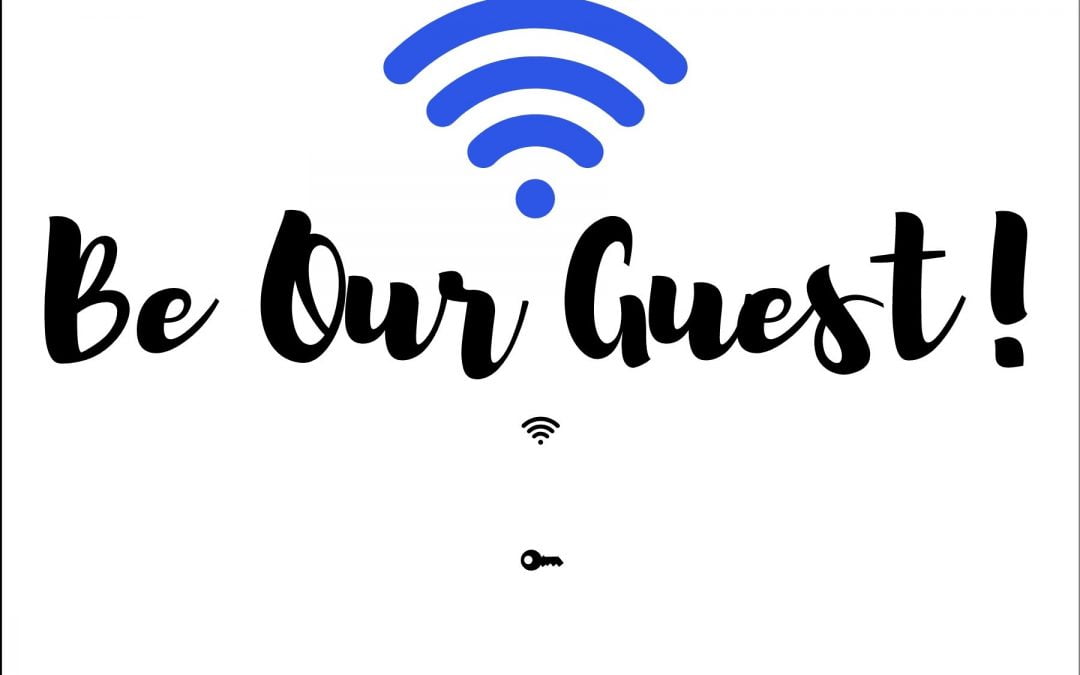
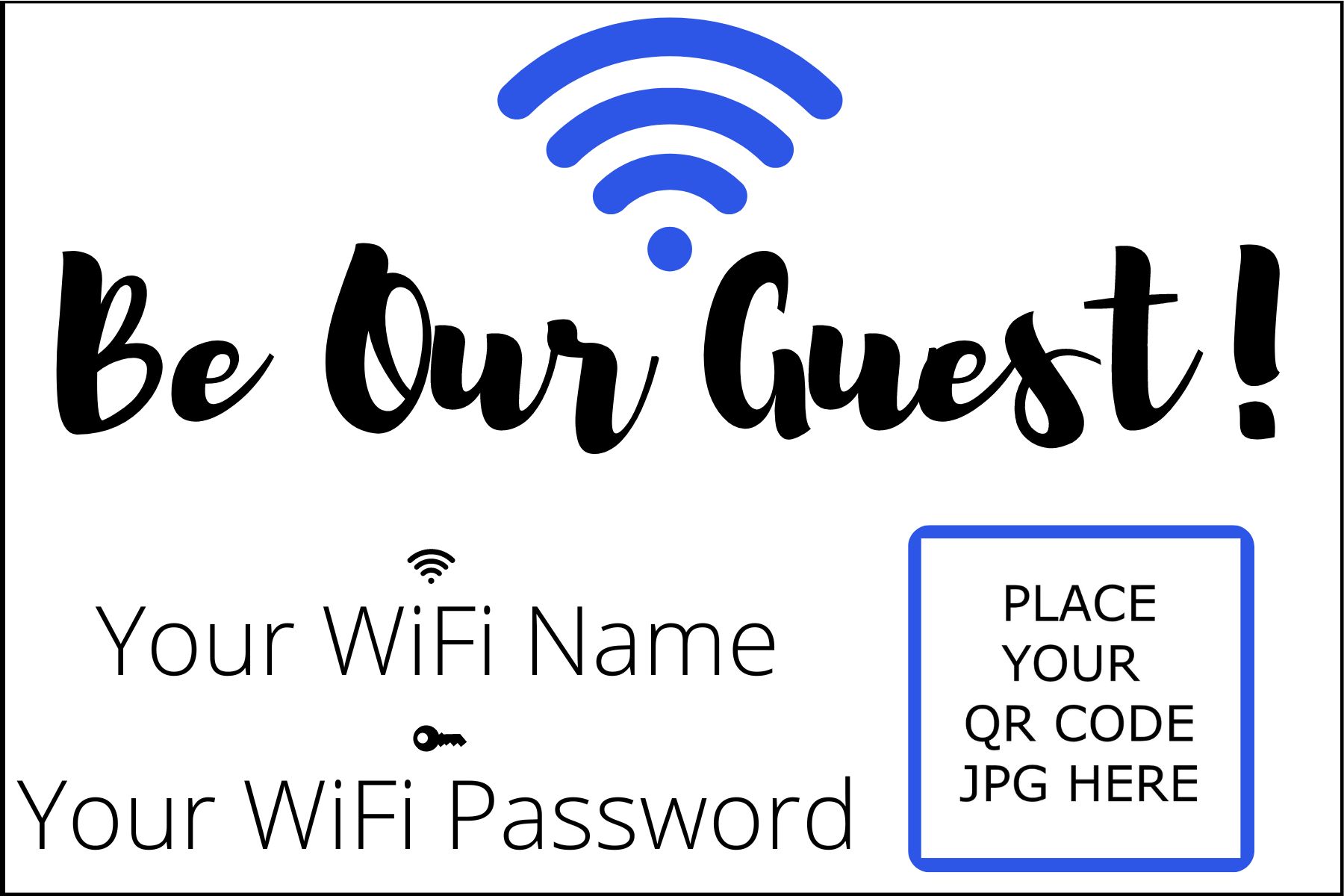
The image is 4″ x 6″, the Be Our Guest font is called Brusher with a size of 72.

The network and Password font is Glacial Indifference with a size of 8.8.

And for the actual Network and Password Info (removed from this image so you can use it yourself) I used the Arimo font with a size of 16.

The WiFi graphic came from canva, click graphics on the menu on the left and do a search for wifi. The color is #2e56e6.

Feel free to download the editable PDF by clicking the image and saving it to your PC.

You can add your network name and password directly to the PDF.

Or open the template in Canva.com and create your own fancy sign. 🙂

A New WiFi Sign With QR Code

We now use an updated WiFi Sign that includes a QR Code that automatically connects their phones to the WiFi.

We use Canva.com to create our signs. It’s really easy, super powerful and it’s free!

Canva also has the ability to share projects as templates, so that’s what we did here. 🙂

Click the image or the button, sign-in or create a Canva account and customize your own sign.


Creating a WiFi QR Code

There are probably a million different ways to create a WiFi QR code, here are a couple of ways that we have used.

From Your Phone

If you have an Android phone it gives you the QR Code for your network. The caveat is you need to be connected to that network for it to show the QR Code.

These are the steps to get the QR Code:

  1. Press and hold the WiFi icon on the main dropdown on your Android phone
  2. Click on the connected network (it should be the network you want to create the QR Code for)
  3. That brings you to the Wi-Fi menu, click the cog icon to the right of your network name
  4. Click QR code on the bottom left of the screen
  5. The should show you your QR code, Click Save as image on the bottom left of the screen
  6. Now you can add your QR code image to your WiFi Sign!

I think Apple phones have the same ability, but we don’t use iphones so I can’t say for sure.

From a Free Website

We’ve used a free site called qrcode-monkey.com to create our QR codes. It’s free and they give you a bunch of options to customize the QR code.

  1. Once on the site, select WiFi on the menu bar
  2. Enter your Wireless SSID and Password in the fields
  3.  Use the options below that to customize the QR Code if you want
  4. Click the Create QR code button and click the .SVG button

No upload the .SVG file from your downloads folder into your WiFi Sign 

What Does Your WiFi Sign Look Like?

We’d love to see what WiFi sign you come up with! Please share your comments below. 

Pin It on Pinterest